
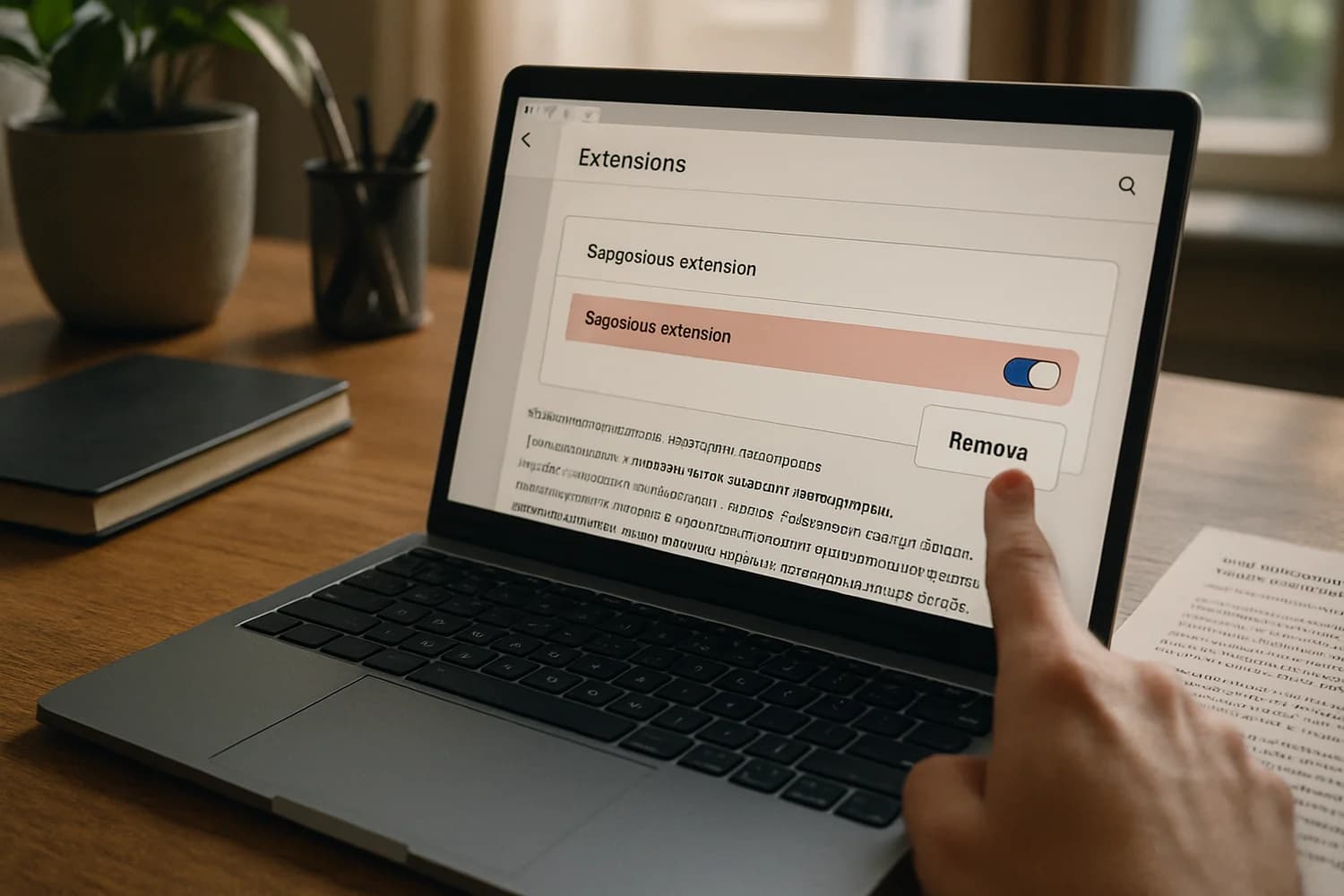
A browser extension can be a convenience feature or a silent compromise. If an extension can read what you type, read what you see, or modify pages, it can also steal credentials, intercept security emails, and take over accounts without obvious malware pop-ups.
Key idea: in many account takeovers, the attacker does not beat your password. They steal your browser session.
Start here: containment steps that prevent re-compromise
| Situation | Do this first | Why it matters |
|---|---|---|
| You just noticed a suspicious extension | Disable it immediately, then remove it | Stops page access and credential/session collection |
| Your password changes are not “sticking” | Sign out everywhere and revoke sessions | Stolen sessions can survive password resets (see session hijacking) |
| You entered passwords on a potentially unsafe browser | Rotate passwords from a trusted device | Changing passwords on the compromised browser can leak the new password |
| Your email account is involved | Secure email first, then work outward | Email resets everything else (control plane) |
| You installed “security” tools recently | Treat it as possible malware and stop using the device for sign-ins | Extensions and infostealers often overlap |
If you want a broader, provider-agnostic recovery flow first, use been hacked: regain access and prevent re-entry and how to check if you've been hacked.
What a malicious extension can do
Extensions run inside your browser, where passwords, sessions, and recovery links often live. Depending on permissions, a malicious extension can:
- Steal credentials by reading what you type into login forms.
- Steal sessions by harvesting cookies or other browser-stored tokens, enabling access without the password.
- Modify pages to redirect you, change payment details, or swap links.
- Read sensitive content you view in web apps (mail, files, admin consoles).
- Undermine recovery by intercepting password reset flows or hiding security alerts.
That makes extensions a high-leverage attack surface. Even one bad extension can create a repeat compromise loop where every login and reset generates fresh access for the attacker.
Why permissions matter (and what to treat as high-risk)
Extensions have a permissions model. Some permissions are narrow and easy to reason about. Others are essentially “be inside every website you use”. When an extension can read and change pages on many sites, it can:
- see login pages and capture credentials
- see password reset flows and recovery links
- see and manipulate financial or admin dashboards
- see confidential messages, documents, and support tickets
This is why the right defensive default is simple. If an extension requests broad site access and you do not have a clear, specific reason it needs it, remove it.
How people end up with a bad extension
Most victims did not intentionally install something “malicious”. Common paths include:
- Lookalike utilities: “PDF”, “coupon”, “video download”, “AI assistant”, or “security checker” extensions with misleading descriptions.
- Social engineering: a message pressures you into installing an extension to “verify”, “unlock”, or “fix” something.
- Extension updates: a previously safe extension can be sold, compromised, or updated into a risky version.
- Bundled installs: a downloaded app suggests an extension to “complete setup”.
This is not a browser-specific issue. Chrome, Edge, and Firefox all rely on extensions as a trust boundary.
High-signal indicators your browser or extensions are part of the incident
- A new extension appears that you do not remember installing.
- Your search engine, homepage, or new tab behavior changes unexpectedly.
- You see logins from new locations or devices shortly after signing in.
- Security alert emails are missing, filtered, or deleted.
- Accounts keep getting re-entered after password changes.
Common mistake: changing passwords repeatedly while leaving the risky extension installed. That creates more opportunities for the attacker to collect fresh credentials and tokens.
Recovery sequence (works even when you are not sure which account was hit)
The goal is to stop collection first, then remove access, then rebuild trust.
1) Stop using the browser for logins until it is clean
If you suspect an extension compromise, treat the current browser profile as untrusted for sign-ins. Use a second device you trust, or a separate clean browser profile, for recovery actions.
2) Remove suspicious extensions, then review what remains
Disable first, remove second. Then audit the remaining list and remove anything you do not actively need. Keep your extension set small.
- Chrome: install and manage extensions (includes removal guidance): Chrome Web Store Help
- Firefox: disable or remove add-ons: Mozilla Support
- Microsoft Edge: install, manage, or uninstall apps (including extensions): Microsoft Support
Menus and labels vary by browser version. The stable target is the same: remove extensions you do not recognize, and remove extensions that request broad access they do not need.
3) Reset browser settings if changes keep coming back
Some extensions and browser-hijack tools change settings, policies, or shortcuts. If your browser keeps reverting after you remove extensions, use an official reset flow and then re-check the extension list.
- Chrome: reset settings to default: Google Chrome Help
4) End sessions and revoke connected access on your most important accounts
Assume sessions are burned. For accounts that matter, revoke sessions and connected apps, then reauthenticate on trusted devices only.
- Email first: your inbox can reset other services. Secure it, then work outward.
- Banking and payments: if you see suspicious transfers or new payees, contact your bank immediately.
- Work accounts: involve IT or security if the account is managed.
Session cleanup and connected-app review are the keys to stopping persistence. If you want the model, see session hijacking and OAuth (connected apps).
5) Rotate passwords from a trusted device and protect the control plane
After the browser environment is clean, rotate passwords from a trusted device. Use unique passwords stored in a password manager. If you reuse passwords, assume multiple accounts are at risk.
Then lock down recovery methods. Remove any unfamiliar recovery email, phone number, or authenticator method. Attackers often win the second time through recovery abuse, not through new exploitation.
Browser sync can spread the problem across devices
Many browsers sync extensions and settings across devices when you sign in. That is convenient, but it can also spread a risky extension or a hijacked setting. If you discover a malicious extension, check every device that shares the same browser account.
- Remove the extension everywhere, not only on the machine where you noticed it.
- After cleanup, re-check that it does not reappear when sync runs again.
- If you maintain separate devices for work and personal browsing, keep browser accounts separated too.
Rebuild a clean browser profile when trust is broken
Sometimes removal is not enough. If you have repeated re-entry, unexplained setting changes, or you cannot confidently explain what is installed, rebuild a clean profile and migrate deliberately.
- Create a new browser profile and do not enable extension sync yet.
- Install updates for your OS and browser before you sign in to important accounts.
- Reinstall only essential extensions from the official store and only when you can explain why you need them.
- Migrate bookmarks carefully. Avoid importing unknown “helpers” or bundled tools.
- Reauthenticate to your email and identity-provider accounts first, then move outward to the rest.
Rebuilding is a tradeoff. It costs time, but it restores a property you need for safe recovery: a browser environment you can understand.
Safety note: if you are rotating passwords, do it after you have a trusted browser profile. Otherwise the rotation can become a credential collection event.
If your password manager uses a browser extension
Many password managers offer an extension for autofill and convenience. That can still be safe, but it raises the stakes of extension hygiene. Treat your password manager like your email inbox: it is part of the control plane.
- Prefer official installs from the vendor and the official extension store.
- Keep the manager locked and require reauthentication for sensitive actions when available.
- If you suspect the browser was compromised, sign in to the password manager from a trusted device and rotate the vault password if appropriate.
What to document before you delete evidence
If money, work accounts, or customer data could be involved, capture a small evidence packet before you wipe things away. It increases your odds of successful support escalation and can help you detect repeat attempts.
- Extension identifiers: name, publisher, store link, and any visible ID.
- When you noticed it and what changed (search engine changes, new pop-ups, unknown logins).
- Account events: security alerts, login history anomalies, password reset emails.
- Financial indicators if relevant (new payees, suspicious purchases).
Preserve what you can safely, then move on to containment. Evidence is helpful only if it does not slow down stopping active access.
What to do if you used the extension for months
Do not panic, and do not try to rotate everything in one burst. Prioritize accounts by leverage:
- Email and password manager: these unlock the rest.
- Financial accounts: banks, cards, payment apps, crypto exchanges.
- Identity providers: Apple ID, Google account, Microsoft account.
- High-reach communication: social accounts and messaging apps.
Work methodically. If you rotate passwords while the browser is still untrusted, you can create a loop where every “fix” becomes new access for the attacker.
How to decide whether this is only an extension problem
Some incidents are only a risky extension. Others include malware. The difference matters for recovery sequencing.
- Extension-only signals: suspicious extension appears, browser settings change, problems are contained to one browser profile.
- Malware signals: new unknown programs, credential prompts outside the browser, repeated compromise across browsers, or signs of an infostealer infection.
If you suspect malware, stop using the device for sign-ins until it is cleaned or rebuilt. For endpoint-level checks, start with how to check if your phone is hacked or how to check if you've been hacked.
If this happened at work
In a work environment, a malicious extension is rarely “just your browser”. It can expose business email, files, customer data, and internal tools. It can also create a repeat compromise loop because single sign-on and persistent sessions are designed for convenience.
- Tell the right internal person early (IT, security, or your admin). Delay usually increases the blast radius.
- Assume there is more than one victim if the extension was installed from a shared message or a shared “tooling” recommendation.
- Expect org-level controls: managed devices may enforce extension policies or block removals. Admin help can be required to finish containment.
- Ask for session revocation on your identity provider and core apps, not only password resets.
The success condition is the same. Stop collection, remove authorization paths, and rebuild trust using a clean browser environment. The difference is who owns the controls.
Common questions
Does two-factor authentication prevent extension takeovers?
Two-factor authentication helps against password theft, but it does not automatically protect you from session theft. If an attacker can reuse an authenticated session, they may not need to pass a fresh login check. That is why session revocation matters.
Should you reinstall the whole browser?
Often a new profile is enough. If the machine shows broader compromise signals or repeated re-entry across multiple browsers, treat it as an endpoint problem and clean or rebuild the device before doing sensitive recovery steps.
Is Incognito mode safer?
Incognito reduces local history and storage, but it does not automatically make a compromised device safe. The key question is whether the browser environment you use for sign-in is trustworthy.
Why do attacks keep coming back after you removed the extension?
Repeat compromise usually means persistence was left behind: active sessions, connected apps, mailbox rules, or a compromised recovery method. Solve for remaining access paths, not only for the original entry point.
Hardening habits that make extension attacks fail
- Keep extensions rare: fewer extensions means fewer trust boundaries.
- Be strict on permissions: avoid extensions that can read and change all sites unless it is essential.
- Prefer built-in browser features over third-party utilities for basic tasks.
- Separate browsing from admin work: do sensitive work in a cleaner profile with minimal extensions.
- Treat unexpected prompts as phishing (including “install this extension” prompts). See phishing.
Browser extension risk is not about paranoia. It is about acknowledging that your browser is where identity lives. If a single extension can read your sessions, it can often read your life.
Recovery works when you restore a trustworthy environment before you generate new secrets. Remove the extension, reset what it changed, revoke sessions, and then rotate credentials from a device you trust.
Once the browser is understandable again, account security becomes predictable. You should be able to explain what extensions are installed, why each one exists, and what permissions it has. If you cannot, keep simplifying until you can.
That is the durable defense: fewer moving parts, clearer trust boundaries, and recovery steps that do not feed the attacker with fresh access.