
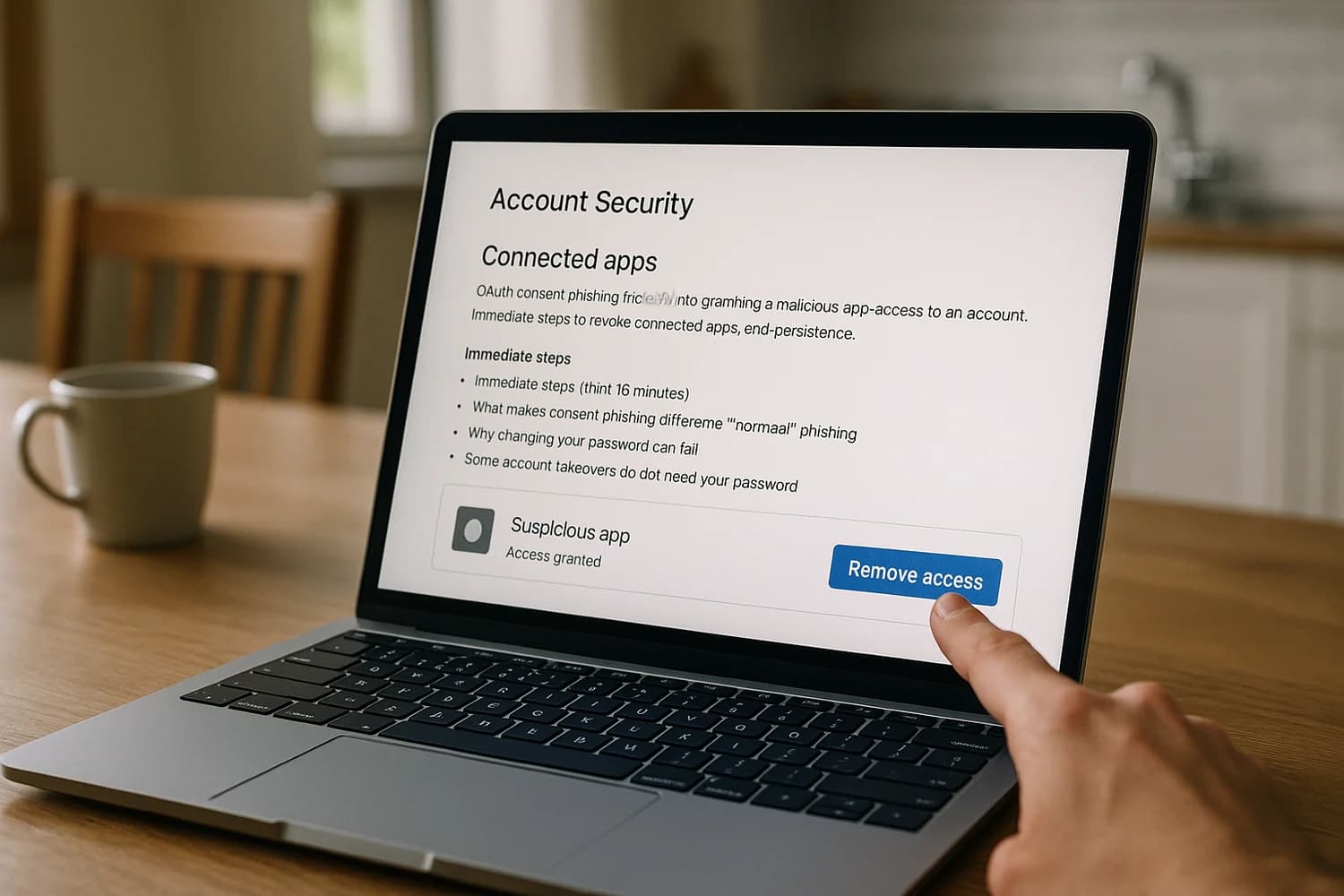
Some account takeovers do not need your password. They need your permission.
OAuth consent phishing is a pattern where an attacker tricks you into granting a “connected app” access to your account through a legitimate permission screen. The result can look confusing: you change your password, enable two-factor authentication, and still see suspicious activity because the attacker’s access comes from an approved token, not a guessed credential.
Rule of thumb: if you did not actively start a “grant access” flow, treat it as a security incident. Close the browser tab, go to your account settings directly, and review connected apps.
Immediate steps (first 15 minutes)
- Stop interacting with prompts: do not approve permission screens, MFA prompts, or “verify your account” links you did not initiate.
- Use a trusted path: open a new tab and go to your account security settings directly (not from email links), then review your OAuth connected apps and remove anything you do not recognize.
- End sessions: use “sign out of all devices” (or equivalent) and remove unknown devices from your signed-in devices list.
- Change your password from a trusted device: if you suspect your device is infected, do not rotate credentials from it. Treat infostealer risk seriously.
- Check your email for persistence: look for new forwarding rules, filters, or mailbox delegates. Many attackers use email access to reset other accounts.
- Lock down recovery: verify recovery email, phone number, and authenticator methods. Remove anything unfamiliar.
If your primary email is affected, prioritize it as the control plane. These guides map the containment flow for common providers: recover a hacked Google account and recover a hacked Microsoft account.
What makes consent phishing different from “normal” phishing
Classic phishing tries to steal credentials. Consent phishing tries to get you to authorize access through a real permission system. The permission screen might be hosted by Google, Microsoft, or another identity provider. The app name can look routine. The scopes can sound reasonable if you are moving quickly.
The attacker’s advantage is that the access often persists across password changes. In many systems, app permissions create refresh tokens or long-lived authorization that can keep working until you explicitly revoke the app or invalidate its tokens.
How it usually happens (without attack instructions)
The pattern is consistent across platforms:
- Pressure + context: a message claims you need to view a shared document, resolve an “invoice”, reauthenticate your mailbox, or fix a “security alert”.
- A legitimate-looking consent screen: instead of asking for your password, it asks you to grant an app access to mail, files, contacts, or profile.
- Overbroad permissions: the app requests access it does not need, such as reading your email, sending email as you, managing files, or maintaining access while you are offline.
- Quiet persistence: the attacker uses the granted access to read sensitive content, reset other services, send messages as you, or create additional persistence (forwarding rules, recovery changes, new connected apps).
This is a social engineering problem as much as a technical one. It succeeds when the consent prompt is treated like a routine login, not like granting a new credential.
Why changing your password can fail
Password changes are still a good step, but they do not always remove OAuth access. When you grant an app permission, the app can be issued tokens that are not your password. Those tokens can remain valid after you rotate credentials. On many platforms, revoking the connected app is the decisive action.
This is also why victims sometimes describe the incident as session hijacking. The symptoms are similar: “I reset my password, but they are still in.” The fix is similar too: you have to cut off sessions and tokens, not only rotate the password.
High-signal indicators of a malicious connected app
- Security alert emails that mention a new app granted access, especially if you were not actively connecting an app at that moment.
- An app in your connected-apps list that you do not recognize, or that has a name that is oddly generic.
- Permissions that do not match the app’s purpose (for example a “PDF viewer” that can read your mail or manage your files).
- Unexpected sent mail, new inbox rules, deleted mail, or missing security notifications.
- Repeated password reset emails for other services shortly after the incident.
| Permission type (examples) | What it can enable | Why it is risky |
|---|---|---|
| Read email or messages | Account recovery interception, sensitive data theft | Email often resets everything else |
| Send email as you | Internal and external impersonation | Turns your account into a trusted delivery channel |
| Access files and cloud storage | Data theft, extortion setup, document tampering | High-impact access that is easy to underestimate |
| Maintain access while offline | Long-lived token refresh | Persistence can survive password changes |
| Profile and contacts | Target mapping, social engineering setup | Makes follow-on scams easier and more credible |
Common mistake: focusing only on passwords. In consent phishing, the attacker’s “credential” is the authorized app.
Remove malicious app access on Google
Google provides a dedicated place to review and remove third-party access and connected apps. Use a direct navigation path (not an email link), then remove anything you do not recognize or no longer use.
- Review third-party access and remove it using Google Account Help: see, manage, or delete third-party access to your Google Account.
- Review your connections to third-party apps and services using Google Account Help: manage connections between your Google Account and third-party services.
After removal, sign out of other devices and rotate your password from a trusted device. Then check for persistence in Gmail: forwarding addresses, filters, and delegates. If the incident included any downloaded “viewer” or “security” tool, treat the device as potentially compromised until it is cleaned or rebuilt.
Remove malicious app access on Microsoft
Microsoft accounts can be affected through connected-app permissions as well. The exact interface differs between personal Microsoft accounts and work or school accounts.
- For many work and school accounts, you can review apps and remove access via Microsoft guidance: remove access of an app from your account.
- For incident responders, Microsoft’s consent phishing playbook provides a defensive model for identifying and remediating malicious app consents: app consent phishing incident response playbook.
If you are in a managed environment, involve your admin team. Organizations can often enforce consent policies that reduce the chance that a single user consent creates long-lived access.
Containment sequencing that actually closes the incident
OAuth consent phishing is a sequencing problem. The goal is to remove the attacker’s authorization path before you generate new secrets they can reuse.
- Revoke connected apps first: remove unknown apps and anything with overbroad scopes.
- Invalidate sessions and tokens: sign out everywhere, remove unknown devices, reauthenticate on trusted devices only.
- Rotate credentials and recovery methods: change passwords, confirm recovery email and phone, and strengthen MFA.
- Hunt for persistence: mailbox rules, forwarding, delegates, new OAuth grants, and any newly installed software or browser extensions.
If you see repeat compromise behavior, treat it as an account takeover (ATO) with persistence, not as a one-time phish. Your success condition is not “I can log in.” Your success condition is “there is no remaining authorization path I did not choose.”
After you revoke a suspicious app, verify it is actually gone
Revocation should be visible. If the app still appears, reappears later, or you see new consents you did not grant, you are dealing with persistence and you should slow down and treat the account as actively compromised.
- Refresh the connected-app list and confirm the app is removed.
- Review recent security activity and look for new “app granted access” events after your cleanup.
- Check sessions and devices and remove anything unfamiliar, then sign out everywhere again.
- Search for new mailbox rules (forwarding, filters, delegates) that could keep resetting access behind your back.
- Watch for repeat alerts for 24 to 72 hours. Repeat attempts often mean the attacker still has a working path.
Do not: keep “testing” by logging in repeatedly from the same possibly-compromised browser. It creates fresh tokens and can help the attacker maintain access.
Email persistence checks that catch the second wave
If the attacker gained any email visibility, assume they will try to pivot. Their goal is usually not your mailbox. Their goal is the accounts your mailbox can reset.
- Forwarding and filters: attackers redirect security mail, then hide the evidence by deleting or auto-archiving.
- Delegates and shared access: some providers allow granting another identity access to the mailbox.
- Security notification visibility: if alerts are being filtered, you lose your early warning system.
- App passwords and legacy access: if legacy authentication is enabled, it can create a quiet access path that looks unrelated to consent.
Do not treat these as “cleanup details”. They are the mechanisms that turn a one-time consent mistake into a repeat compromise loop.
If you are in a business or school environment
Managed accounts add two complications. First, a user consent can create access to organizational data. Second, the right fix might require admin action, not only end-user settings.
- Involve your admin team early if the account is work-managed or controls shared systems.
- Ask for an app-consent review across the tenant, not only your user account, because other users may have been targeted with the same lure.
- Consider stricter consent controls (admin approval, allow-lists, verified publishers). This reduces the blast radius of social engineering.
Hardening that reduces repeat consent attacks
- Slow down on permission screens: read the app name, the publisher, and the requested permissions. If it feels urgent, it is often the trap.
- Prefer least privilege: if an app wants mail access for a purpose that does not require it, deny it and find another tool.
- Use phishing-resistant sign-in where possible: stronger MFA and passkeys reduce credential theft, and they also make it easier to treat consent prompts as separate security events instead of a routine login step.
- Reduce inbox leverage: keep your email clean of silent rules and keep security alert visibility high.
- For organizations: consider tighter consent policies, app allow-lists, and admin approval for risky permissions. This is often one of the highest-leverage controls for stopping consent phishing at scale.
Common questions
Is “sign out everywhere” enough?
It helps, but it is not always sufficient by itself. Signing out everywhere targets sessions. Consent phishing often targets authorization tokens and grants. If you do not revoke the connected app, the app may be able to obtain fresh access again.
Should I delete the app?
Usually you do not need to uninstall anything because the “app” may be a cloud registration. The decisive action is revoking access and removing permissions. If you also installed software or a browser extension, treat that as a separate endpoint problem.
What if I cannot find any suspicious app but something is still wrong?
Do not force the diagnosis. Focus on outcomes: session revocation, device trust, mailbox persistence checks, and recovery method integrity. If suspicious activity continues after you clean connected apps and end sessions, the remaining root causes are often endpoint compromise, mailbox rule persistence, or someone controlling a recovery method.
Can passkeys prevent consent phishing?
Passkeys and strong MFA are excellent for stopping credential theft, but they do not automatically prevent you from authorizing a malicious app. The defense is recognizing that permission grants are security events and applying least privilege.
When to treat the device as part of the incident
Consent phishing can be “pure OAuth”, but real incidents often mix techniques. If you clicked a download, installed an extension, or ran a “security” program, assume the endpoint might be compromised. That is how a consent event turns into credential theft, session theft, or wider compromise.
Device triage matters because changing passwords on an infected device can immediately leak the new password. If you see browser instability, unknown extensions, or repeated account re-entry, do not keep experimenting on the same machine. Move recovery to a trusted device and clean or rebuild the suspect one.
Verified resources for the exact menus and flows
- Google: manage or delete third-party access: Google Account Help
- Google: manage connections to third-party services: Google Account Help
- Microsoft: remove app access: Microsoft Support
- Microsoft: app consent phishing response model: Microsoft Learn
Consent phishing feels invisible because it uses a legitimate feature. That is exactly why it is so effective: it hides inside “normal” authorization.
Recovery works when you treat app permissions as first-class security events. Revoking a malicious app can matter more than changing a password, and it is often the fastest way to stop active misuse.
Once the app list is clean, your job is to re-establish trust: end sessions, reauthenticate on known devices, and tighten recovery methods so a single mistake cannot cascade into every other account you own.
If you can describe the remaining access paths and explain why each one exists, you are back in control. If you cannot, keep looking for persistence until the system is understandable again.