

If your Yahoo account is your email inbox, it is often the recovery channel for everything else. Securing it is less about one setting and more about making sure an attacker cannot reset your passwords, steal verification codes, or keep a hidden session alive.
| First moves | Why it matters |
|---|---|
| Enable Yahoo two-step verification, and keep recovery email/phone current | Recovery options decide whether you can get back in after a lockout and whether an attacker can recover the account away from you. |
| Change to a unique, manager-stored password | Stops credential reuse and reduces the chance one breach turns into a mailbox takeover. |
| Review recent activity and sign out of unknown sessions | Removes persistence. If you only change the password, old sessions can sometimes remain active. |
| Check for mail forwarding and filters you did not create | Attackers often steal mail quietly by forwarding or filtering security alerts. |
Strengthen sign-in and recovery
Turn on two-step verification and make sure Yahoo has at least one recovery method that you control. Options vary by account, device, and region, so use the official help flow rather than relying on old screenshots:
- Yahoo Help: Set up and manage Yahoo two-step verification
- Yahoo Help: Manage Yahoo Account Key (when available)
Keep in mind that SMS is easier to bypass than app-based factors because phone numbers can be targeted via SIM swapping and carrier account recovery. If you can use a stronger method, prefer it.

Use a password manager and stop reuse
Use a unique password for Yahoo and store it in a password manager. The goal is to prevent a different breach from becoming a mailbox takeover. If you need a quick refresher on the failure modes, see common mistakes creating passwords.
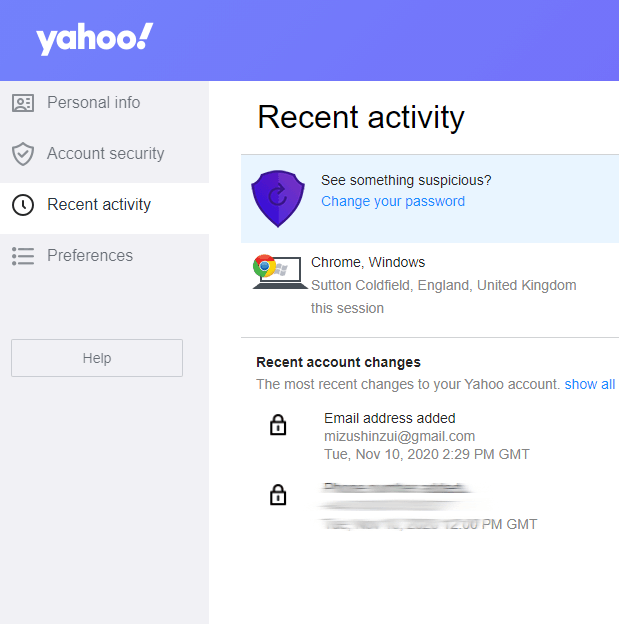
Review recent activity and end unknown sessions
Check Yahoo’s recent activity and sign-in history. If you see a device, location, or time you do not recognize, treat it as compromise until proven otherwise: change the password, revoke sessions, and re-check recovery methods.
Look for quiet persistence: forwarding, filters, and connected apps
Mailbox takeovers often try to stay invisible. After you secure sign-in, look for mechanisms that let an attacker keep getting your mail:
- Forwarding addresses you do not recognize
- Filters that auto-archive security alerts, password resets, invoices, or login warnings
- Connected apps or third-party access you do not remember granting
Safety note: if you are receiving security codes you did not request, do not share them with anyone and do not keep trying to log in repeatedly. Secure the password from a trusted device and review sessions first.
If you cannot sign in or suspect takeover
If you are locked out or a recovery method was changed, use Yahoo’s official recovery flow and avoid unofficial "recovery" services that ask for your password:
If you are already in an active takeover rather than general hardening, use how to recover a hacked Yahoo account for the recovery order, official-flow checkpoints, and scam warnings.
Most mailbox incidents become loops when the recovery channel stays weak. Once you are back in, verify recovery email/phone, remove unknown sessions, and keep an eye on mail rules for a few days.
Yahoo security is not a single setting. It is a system: strong sign-in, sane recovery, and visibility into sessions and mail rules. If any one of those is weak, attackers can route around the rest.